
From Markdown repository to published website
The Web Content Manager turns a configured Markdown website repository into a complete static HTML website. It accepts an authored site, with or without incoming material, or the Markdown repository produced by the documentation bundle generator. Generating HTML and deploying it are deliberately separate operations; the published website does not run Python.
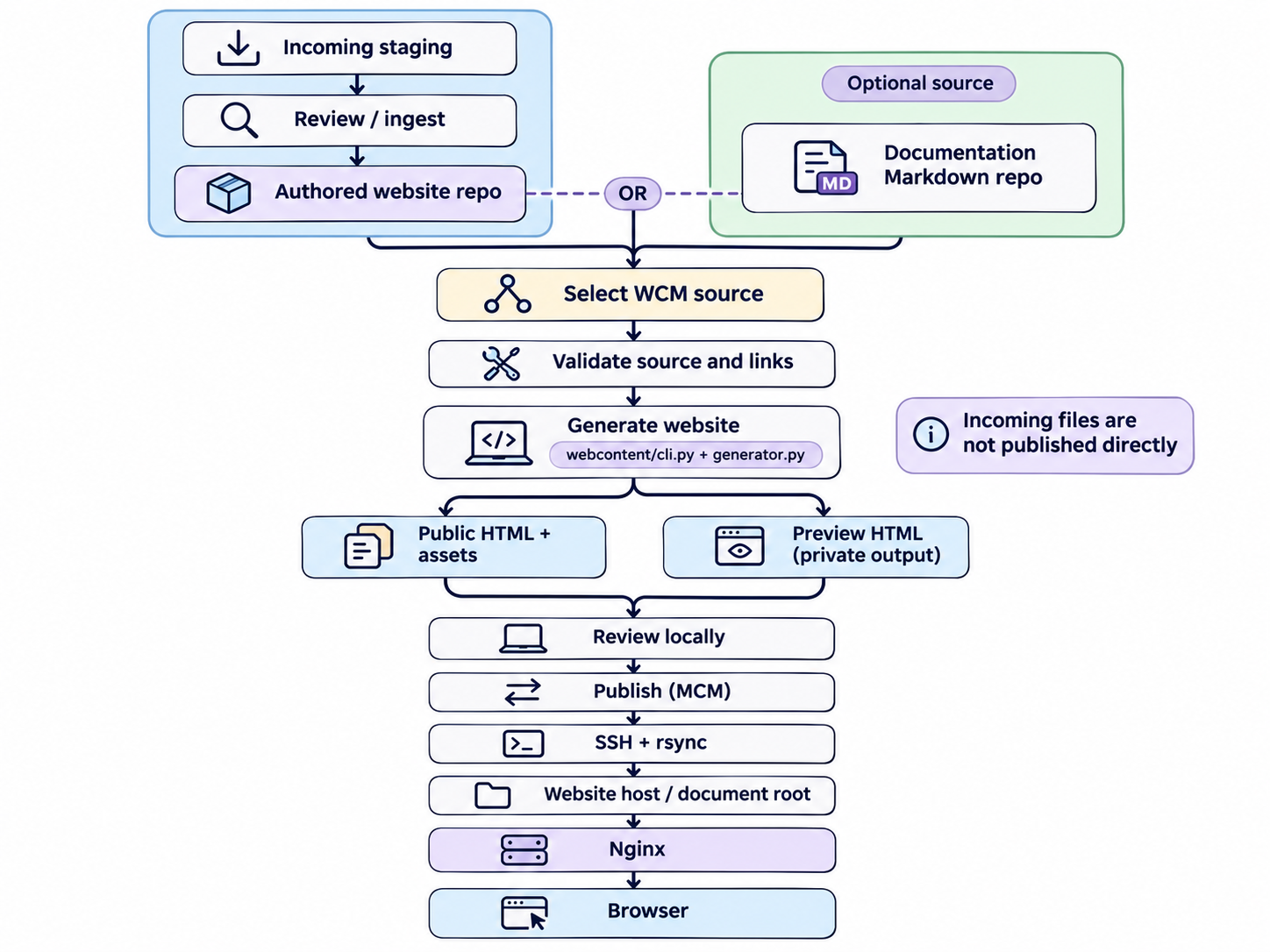
OR is intentional: the documentation generator does not inject its Markdown into an existing authored website. Select whichever repository should become the website source, or curate a combined source explicitly.
The website source and incoming-content boundary
A WCM source repository typically contains content/, config/, templates/, css/ and images/, with incoming/ for optional staged submissions. webcontent/content.py discovers pages and site configuration, while incoming_*.py and ingestion.py handle review, conflict checks and archival. Incoming files are not published directly. After review and ingestion they become canonical content in the selected repository. Pages may also be edited directly; an Incoming transfer is not required to generate a website.
Validation, generation and review
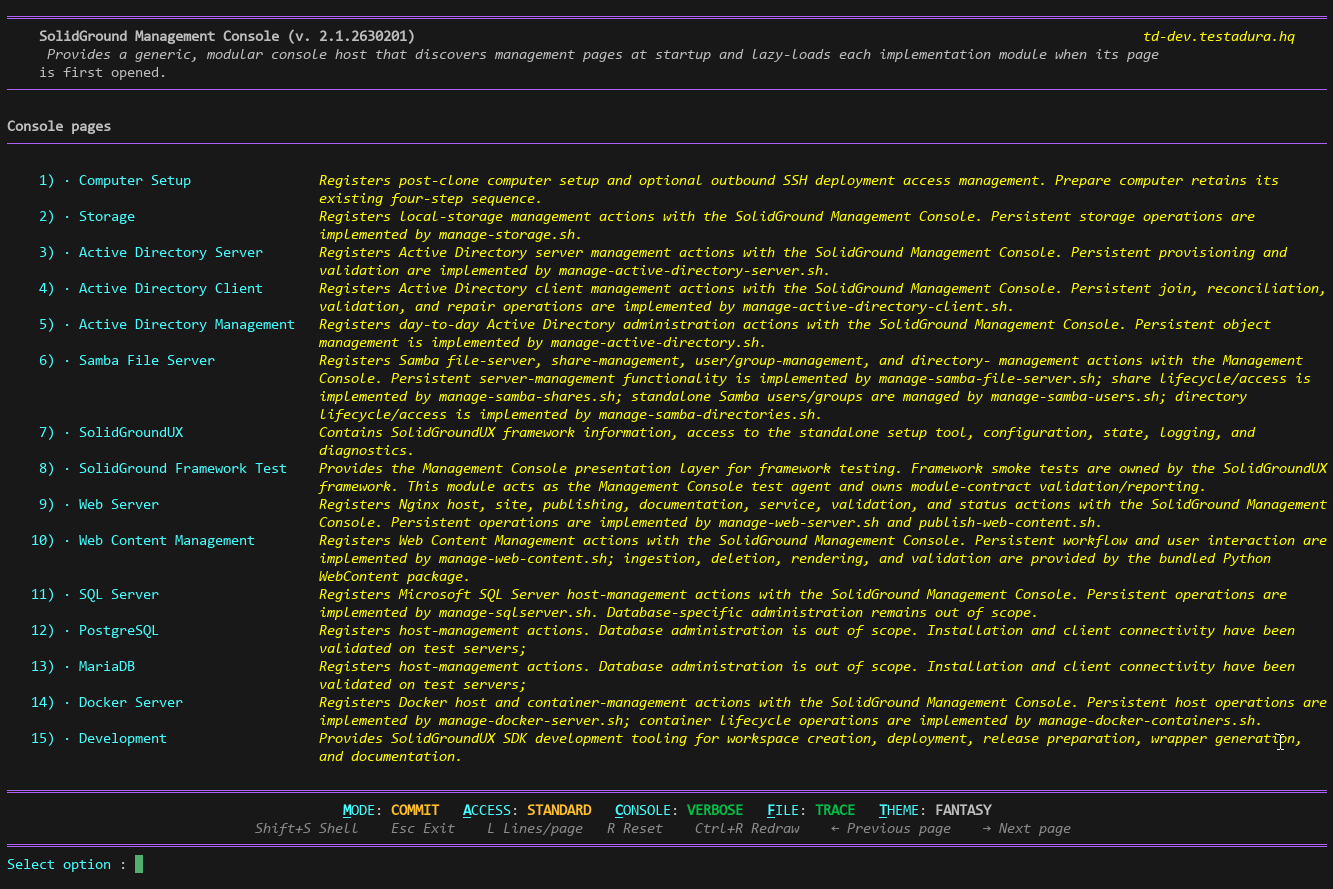
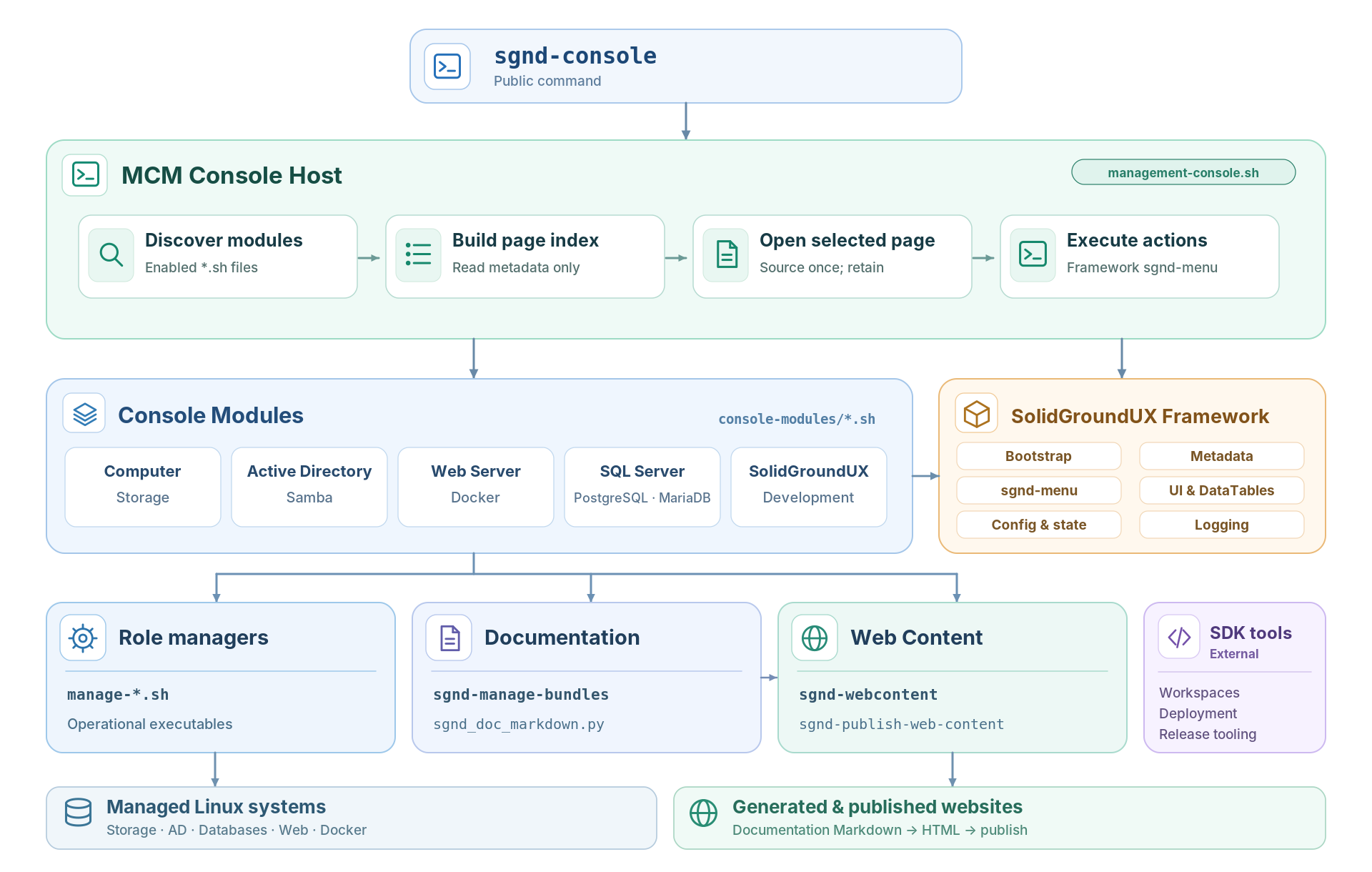
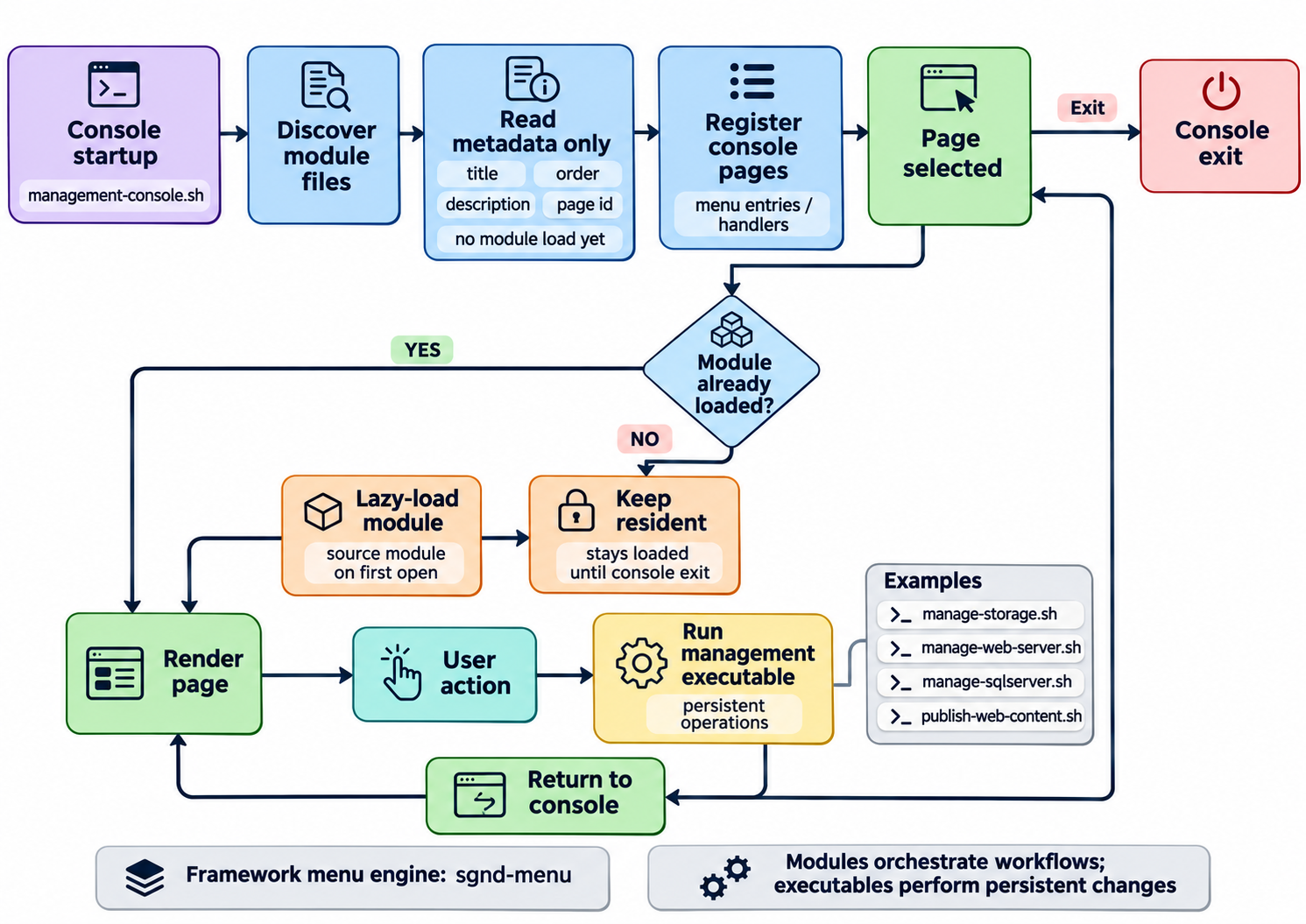
The Management Console uses manage-web-content.sh to invoke the Python webcontent/cli.py commands. Validation checks source structure and links. generator.py discovers navigable content, markdown.py renders Markdown and supported td- components, and templates.py composes the HTML page templates. The output includes HTML, navigation and static assets; public builds also produce sitemap.xml and robots.txt, with RSS when enabled.
Preview builds may include unpublished pages, and belong in an independently protected output directory. Public generation omits draft/preview-only pages. Both outputs can be inspected locally without publishing. Generation never copies files to a remote web server and never commits source changes to Git.
Publishing and serving
Publish Website takes an already generated public HTML directory—not the Markdown source—as input. The Bash publishing workflow lets the operator review the source directory, destination host, remote directory, website hostname and synchronization strategy. It checks the generated output, can provision the destination site through the remote web-server module, then previews transfer changes with rsync --dry-run before requesting confirmation.
Update copies additions and changes; Mirror can also remove remote files absent from the generated output. Mirror therefore requires extra attention to the deletion preview. The transfer uses SSH and rsync to place the static files in the web server's document root. Nginx serves the result; neither the Markdown parser nor the Python renderer runs per HTTP request.
publish-web-content.sh also exposes separate server-site and documentation publishing operations. Those publishing actions should not be confused with Markdown bundle generation or the Python website renderer. A successful generation is not evidence that the deployment has been performed.
Responsibilities by component
| Component | Responsibility | Output / hand-off |
|---|---|---|
| Markdown site repository | Canonical content/, config/, templates and assets | Input to WCM |
| Incoming / ingestion | Stage, review, validate and archive submitted changes | Updated canonical Markdown source |
webcontent/content.py | Discover content and site configuration | Navigable page model |
webcontent/markdown.py | Render Markdown and supported td- components | HTML fragments |
webcontent/templates.py | Apply the site page templates | Complete HTML pages |
webcontent/generator.py | Coordinate HTML/site-asset generation | Public or preview output directory |
manage-web-content.sh | Provide the MCM operator workflow | Validation and generation actions |
publish-web-content.sh | Review destination and synchronize built site over SSH/rsync | Files in the web server document root |
| Nginx | Serve generated HTML and assets | Browser response |
Markdown authoring components
WCM extends standard Markdown with explicit td- components, used only when ordinary Markdown is insufficient. Component blocks start with ::: and end with a matching :::. The short reference below precedes working examples.
| Construct | Function | Example |
|---|---|---|
td-grid, td-tile | Responsive groups of content tiles | ::: td-grid |
td-gallery | Horizontally sliding image gallery | ::: td-gallery |
td-gallery-compact | Smaller gallery items, useful in reference pages | ::: td-gallery td-gallery-compact |
td-note | Informational callout | ::: td-note |
td-warning | Warning callout | ::: td-warning |
td-technical | Technical explanation | ::: td-technical |
.td-image-product | Product image presentation | {.td-image-product} |
{download} | Request a browser download for a linked resource | [Template](...){download} |
Tiles in a Responsive Grid
Use td-grid to arrange related tiles responsively. Each child td-tile becomes an individual tile. The grid places tiles next to one another when there is room and stacks them on narrow screens.
SolidGroundUX
Linux/Bash framework for consistent management and provisioning workflows.
SolidGround IV
Application and integration framework.
Sliding Image Gallery
Use td-gallery for a horizontally sliding image gallery. The gallery uses native horizontal scrolling and scroll snapping, so it works with a mouse, trackpad, or touch without requiring JavaScript. Add td-gallery-compact for a smaller example (ordinary galleries retain their regular width).
Callouts
The renderer provides several callout components for content that needs visual emphasis without leaving Markdown authoring.
A normal note.
Something requiring attention.
Technical detail.
Inline and Image Classes
Existing td- classes can be applied directly where the Markdown syntax supports attributes.
Identify
Keep custom component names under the configured td- prefix. Validation reports a referenced td- class that does not exist in the site CSS.
Featured Content
The homepage Featured slider is driven by Markdown front matter when the legacy www/config/featured.cfg is absent:
title: SolidGround IV featured: true featured_order: 10 featured_image: /images/solidgroundiv-logo.png
featured: true includes a page; featured: false (or omission) excludes it. Pages with featured_order appear first, ascending by number. Unnumbered featured pages follow alphabetically by title; ties are alphabetical too. nav_order is independent and controls navigation, not Featured ordering. The slider's autoplay_interval is configured in featured-slider.cfg. Legacy featured.cfg, when present, remains authoritative; remove it to use front-matter selection.
==================================================================================
drafts, previews, SEO, feeds
Public is the default: only published pages are generated. Preview builds include status: draft and status: preview pages and must be written to a separate, access-controlled output directory. noindex is not access control. Use status: published or omit status for public pages. Legacy draft: true remains accepted. The public component showcase stays published; authors can set status: preview for material meant only for private preview builds.
python3 -m webcontent.cli generate --source ./www --output ./public python3 -m webcontent.cli generate --source ./www --output ./private-preview --mode preview python3 -m webcontent.cli generate --source ./www --output ./public --rss
published: YYYY-MM-DD determines article date and chronological sorting; legacy date: remains a fallback. A filesystem creation date is not stable across Git clones and ingestion, so there is no automatic creation-date fallback.
Public builds generate sitemap.xml and robots.txt from published routes only, plus canonical, Open Graph and social-card metadata. description overrides the summary for SEO. A hero image is used for sharing previews when present. Optional RSS produces rss.xml from dated, published articles only. The generation result includes skipped_pages, broken_links, sitemap_generated, rss_generated and non-fatal local link warnings.
source and publication
The website source is the configured repository root (the directory containing content/, config/, templates/, css/ and images/). It is not the generated public directory. MCM changes files in that source tree; it never performs a Git commit or automatically posts to a social network.
Daily authoring sequence:
Write Markdown -> Incoming -> Review & Ingest Incoming -> Generate website -> Preview/review -> Publish -> Commit to Git when ready
Keep an offline or Git-backed copy of the source before bulk operations. Use NL/EN filename suffixes consistently, e.g. voorbeeld_NL.md.
How to add an article
- Start from the downloadable article template under Schrijven voor deze site, or create a Markdown file with
---front matter. - Supply a title, target parent section, route slug and language. For example:
title: "Een praktijkverhaal" summary: "Een korte omschrijving voor overzichten" teaser: "Een prikkelende introductie voor sociale media" kind: article parent: /tales-from-the-trenches/ slug: een-praktijkverhaal language: NL draft: true featured: false
Een praktijkverhaal
De tekst van het verhaal begint hier.
- Upload Markdown or a ZIP package into Incoming, or use Retrieve Incoming / Import local files to Incoming. Choose Review and ingest Incoming package, inspect the proposed destinations and confirm. The target section must already exist, or the package must contain its section index.
- Successful ingest places the canonical content under
content/and moves the processed package intoincoming/archive/. Conflicting or failed packages remain in Incoming. Ingest does not generate or publish the site. - Generate a preview, inspect the page, and publish only when ready.
kind, parent, slug and language are placement hints for Incoming; the canonical file uses its location and filename instead of retaining them. For an existing article, edit its source directly or use Edit page metadata for a front-matter-only change. Ingest refuses to overwrite existing pages.
How to add a section
A section is a directory with a language-specific index_NL.md or index_EN.md. Create it through Incoming by setting kind: section and choosing an existing parent section, for example:
title: "Een nieuwe rubriek" summary: "Waarover deze rubriek gaat" kind: section parent: / slug: nieuwe-rubriek language: NL draft: true
Een nieuwe rubriek
Introductie van de rubriek.
Ingest creates content/nieuwe-rubriek/index_NL.md after validation. Create an EN variant separately if required. Creating a section does not automatically add it to the sidebar navigation: update config/navigation.cfg if it should have its own navigation entry. Validate the links afterwards.
How to edit, move or remove content
Edit page metadata: browse to a page and stage one or more changes. Select an existing field to edit, add a new field, or choose Remove metadata field to delete an explicitly stored key so its default applies again. Enter accepts the current value; :clear sets a text field to an empty string but does not remove it. Choose Save all staged changes to write the batch atomically, or discard it. The Markdown body remains untouched.
Move / rename page: select a non-index page, choose an existing destination section and a new slug, then confirm. The current implementation moves one language variant at a time and does not rewrite incoming links. Regenerate and run link validation; update any links to its previous URL manually.
Delete page: choose the MCM delete action and select the target page or section. Review the impact preview carefully, including child pages and translations, then confirm. Deleted sources are archived for recovery. To remove a section, use the section deletion choice; inspect descendants and language variants before confirming. Remove obsolete sidebar navigation entries manually from config/navigation.cfg, then regenerate and validate.
Publication, Featured and social-media preparation
Keep draft: true while writing; preview builds can show unpublished content. Switch to draft: false (or an equivalent supported published status) before generating the public site. The renderer supports metadata such as title, summary, featured, featured_image, and teaser.
Use featured: true and optional featured_order in the page front matter. Numbered featured pages sort first, then unnumbered pages alphabetically. A legacy featured.cfg, if present, still overrides the Markdown selection. The Featured carousel's autoplay interval is a slider setting, not metadata.
Prepare social media drafts selects one existing published article from the repository and writes an editable file to the configured social output directory, outside the Git checkout. The text preference is teaser, then summary, then a plain-text excerpt (default 150 characters) from the body. Review and publish to the external platform yourself; no automatic posting.
Downloads and authoring reference
The website's Schrijven voor deze site section provides NL/EN article, product and section templates, the authoring guide and the component showcase. Add {download} immediately after a normal Markdown link to request a browser download instead of navigation:
For every new Markdown token or authoring component, update the repository's AUTHORING.md, both website-language authoring guides and the component showcase with a working source example in the same change. ==================================================================================